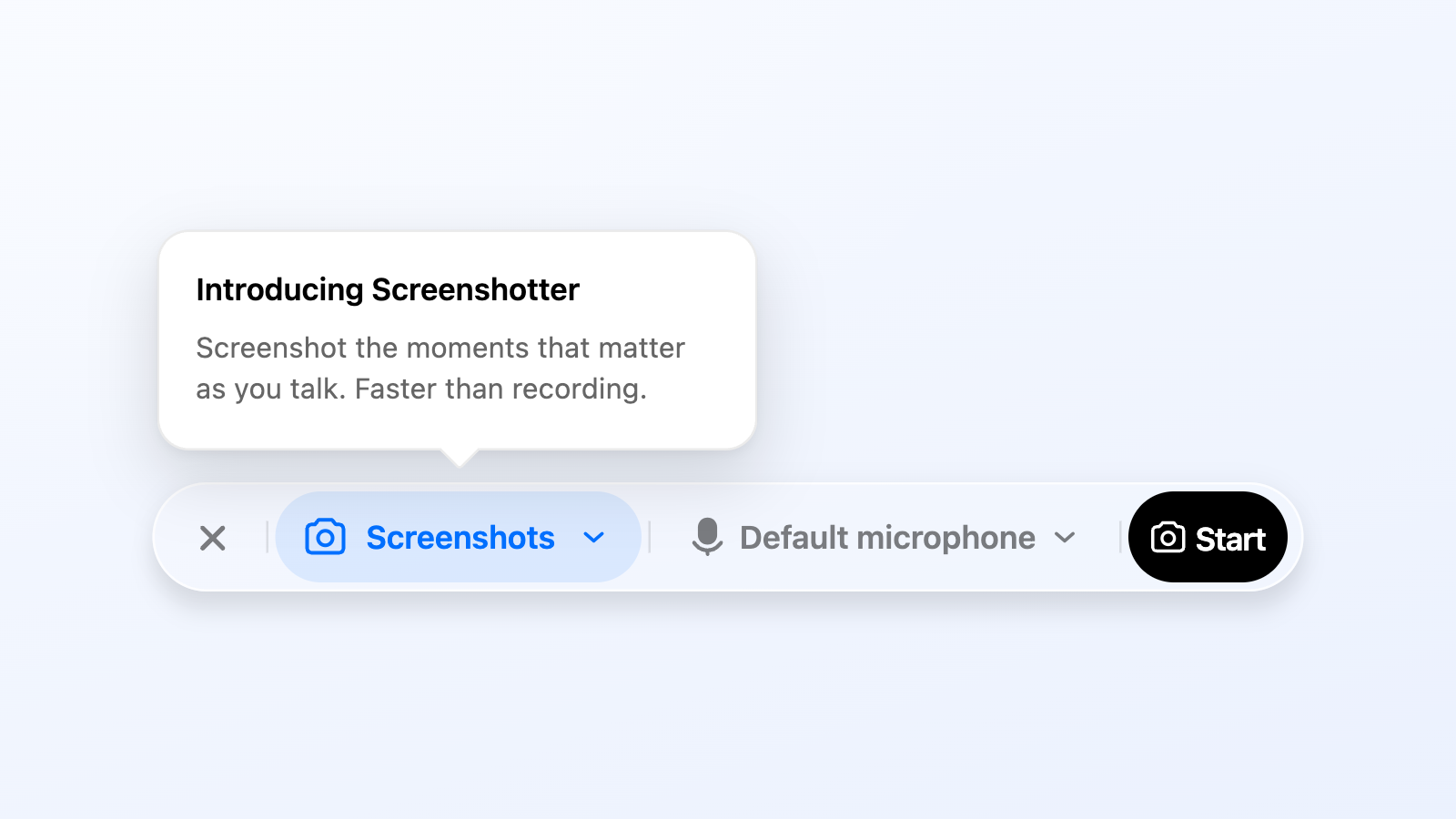
Say Hello to Screenshot Mode
 September 9, 2026
Not every piece of feedback needs a screen recording. Sometimes a screenshot and a few words will do. That's where Screenshot Mode comes in: a faster way to capture that feedback with Montra.
Capture screenshots while you talk
Start narrating and hit Command + Shift + S on your Mac to capture your screen while you're talking. Montra will auto-capture a screenshot every time you make an annotation, keeping your flow going. When you're finished, a cleaned-up version of your transcript and screenshots is automatically copied to your clipboard so you can simply paste that right into Slack, your coding agent, Notion, etc.
Switch between screenshots and recordings
Like with video, Montra turns screenshots plus your narration into something nicely formatted, well organized and easy to share with teammates: a task similar to a screen recording task. From there you can quickly share it with someone, send it to Linear or hand it right to a coding agent.
Screenshot Mode gives you a faster way to capture what needs to change without recording more than you need to. We're excited to hear what you think!